A zero-downtime Microsoft 365 migration keeps people working in email, files, and Teams throughout the move. You get there by assessing your environment first, running the old and new side by side, syncing data in stages ahead of cutover, and keeping the final switch short and rehearsed. A literal zero can’t be guaranteed for every environment, but minimal disruption is a realistic goal.
Nobody schedules a migration hoping for an outage. Yet the dread is familiar: the weekend cutover, the Monday morning of missing mail, the help desk buried in tickets.
This guide shows how to plan a zero-downtime Microsoft 365 migration so that Monday looks like any other Monday.
What Zero Downtime Really Means
Zero downtime doesn’t mean nothing changes. It means people keep doing their jobs while the migration happens around them: email keeps flowing in and out with nothing lost or bounced, files stay reachable, and meetings, chat, and calendars keep working. At most, users notice a sign-in prompt or a restarted Outlook.
One honest caveat: no one can promise a literal zero for every environment, because the risk depends on what’s in yours. What a good plan can promise is that disruption is designed out wherever possible, and that the unavoidable moments are short, scheduled, and rehearsed.
Why Migrations Cause Downtime
Most outages trace back to the same few causes. The first is the big-bang cutover, where everything switches at once and any mistake hits everyone. The second is mail routing: DNS and MX changes made without preparation send messages to the wrong place or bounce them. The third is identity. If accounts and permissions weren’t mapped, people can’t sign in or reach their files.
The rest are quieter. Legacy apps, integrations, and shared mailboxes nobody documented tend to break on cutover day, and without a rehearsed rollback there’s no agreed way back when they do. Every strategy below removes one of these causes.
Strategies That Keep People Working
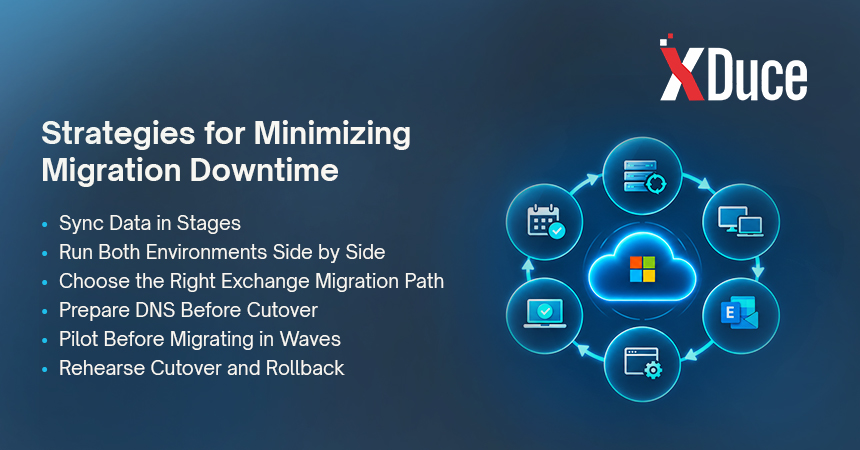
Sync in stages, not in one jump. Move data in batches ahead of cutover, then run smaller catch-up syncs. The final switch carries only what changed since the last pass, which is why it can be short. That’s the idea behind our delta-sync methodology.
Run both environments side by side. Set up mail routing between the old and new environments, plus shared free/busy. Someone who has already moved can still email and schedule with someone who hasn’t, so nobody is stranded mid-migration. If the move follows a merger or divestiture, our guide to a Microsoft 365 tenant-to-tenant migration covers the extra identity and domain sequencing, and the tenant-to-tenant migration checklist gives your admins a step-by-step list.
Choose the right Exchange migration path. Microsoft documents cutover, staged, and hybrid paths for Exchange Server sources. Cutover suits small environments, since Microsoft notes its performance suffers beyond about 150 mailboxes, and for later Exchange versions it recommends the Express hybrid option instead. Hybrid fits larger environments and keeps mail flowing during the move, at the price of more setup. IMAP moves email only, so contacts, calendars, and tasks need another route.
Prepare DNS before the switch. Lower the TTL on mail-related DNS records a few days ahead, so changes take effect quickly when you flip them.
Pilot first, then move in waves. A small group finds the surprises while they’re cheap to fix. Larger waves follow once the pilot is clean.
Cut over at a quiet time with a written runbook. Pick an off-peak window, assign an owner to each task, and agree in advance what triggers a rollback.
How to Plan a Zero-Downtime Microsoft 365 Migration
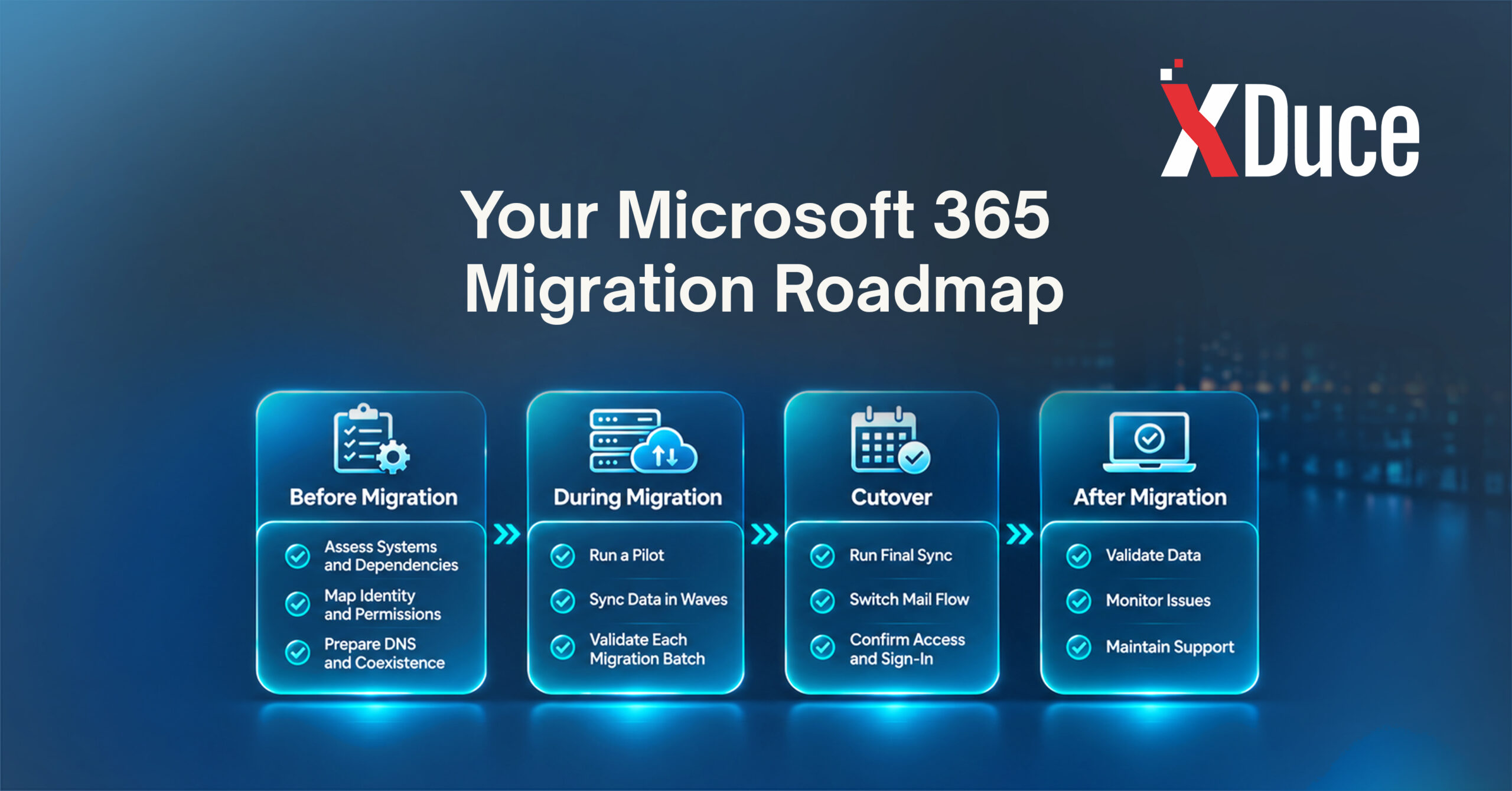
In practice, the work follows a steady order. Start by assessing your environment: inventory mailboxes, file volumes, identity setup, and integrations, and rank the risks. Our cloud readiness assessment produces exactly that. Next, map identity and permissions, deciding how accounts, groups, and shared mailboxes carry across before any data moves.
With identity settled, set up coexistence and lower your DNS TTLs well ahead of cutover, then run a pilot with people who’ll report problems instead of working around them. After a clean pilot, sync in waves, validating each one before the next begins. On cutover day, run the final sync, switch mail flow, confirm sign-ins, and have the help desk ready. Afterward, compare everything against your starting inventory, keep the old environment until nothing is missing, and staff support for the first week.
Best Practices
Treat identity as the critical path, because it causes more delays than data transfer does. Tell users what’s changing, when, and who to call before it happens, and rehearse the cutover, including the rollback. Keep a live issue log on cutover day and never retire the source environment until validation is finished. Staff the help desk for the first week, when questions peak, and document everything so it becomes the runbook for your next move.
Keep Security and Compliance in the Plan
A migration puts data in motion, and a rushed one is where gaps open up. Before data lands in Microsoft 365, set up multi-factor authentication and Conditional Access, and align data loss prevention and retention rules with your obligations under HIPAA, GDPR, DORA, or the DPDP Act. Our Microsoft 365 security and compliance guidance by region pages explain how those controls fit together.
When to Bring in a Partner
An in-house team can handle a small, simple migration. A partner earns its fee when:
- The environment is large or complex.
- Regulated data is involved.
- The deadline can’t move.
- Your IT team is already at capacity.
Research we draw on reports that DIY cloud migrations finish on time and on budget 49% of the time, against 71% for partner-led ones, and that 38% of migration projects exceed their budget, by 23% on average. Those are averages, not predictions for your project.
Bringing in a partner doesn’t mean giving up control. In a co-managed model, your IT team keeps the decisions while we handle the heavy lifting. Our Microsoft 365 migration services are built around exactly that approach.
Frequently Asked Questions
Disruption can be minimized to the point where most users never notice it, but no one can promise a literal zero for every environment. The result depends on your size, your identity setup, and how many surprises are hiding in your integrations. A thorough assessment and a rehearsed cutover get you closest, so ask any provider how they test theirs.
It depends on the number of mailboxes, the volume of files, how complex your identity setup is, and how much coexistence you need. Staged syncing means most of the work happens in the background while people keep working, so the final cutover itself is short. Scoping your environment first is the only reliable way to get a timeline.
The usual culprits are big-bang cutovers, DNS and mail routing mistakes, unmapped identities or permissions, and undocumented dependencies such as legacy apps and shared mailboxes. Most can be found during assessment, which is why skipping that step is one of the more expensive shortcuts. A tested rollback plan covers whatever slips through.
They shouldn’t. Data is synced and validated in stages, and the source stays in place until everything is confirmed. Users may see a sign-in prompt or need to restart Outlook, but missing mail or files is a sign the plan skipped validation. A pilot group is the best way to test this before everyone moves.
Microsoft lists hybrid as the path for Exchange 2010 or later environments with more than 2,000 mailboxes, because it keeps mail flowing and lets you move mailboxes in batches. It takes more setup than cutover, so match the path to your Exchange version and mailbox count using Microsoft’s own decision guidance before committing.

Related Blogs