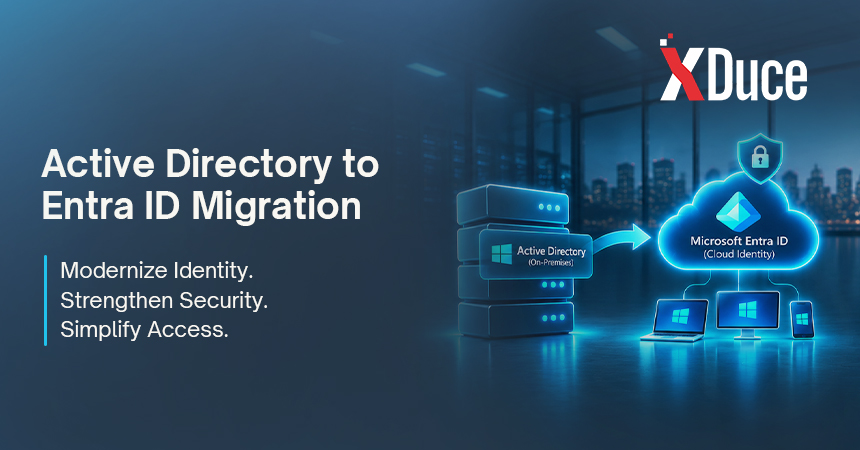
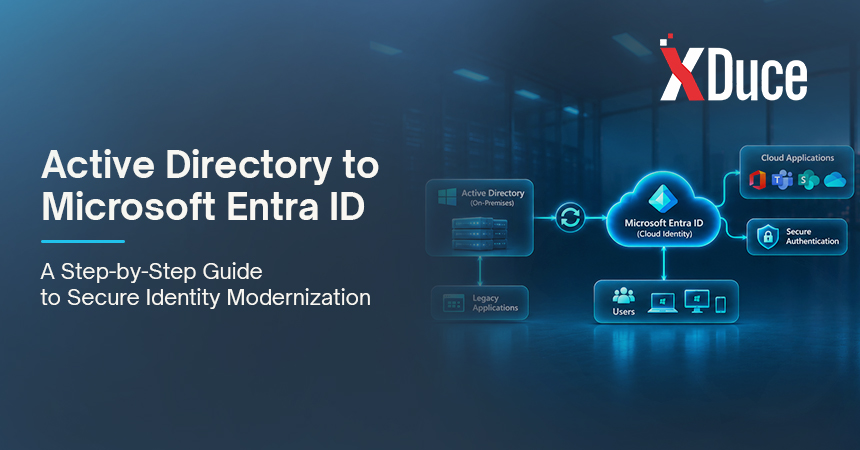
An Active Directory to Entra ID migration moves identity, sign-in, and device management from on-premises Active Directory to Microsoft’s cloud directory. Most organizations go hybrid first, syncing identities to Entra ID, then move apps, authentication, and devices in stages, and retire on-premises pieces only when nothing still depends on them.
Active Directory has quietly run most businesses for decades. Sign-ins, permissions, device policies, even the printer list: they all hang off it. So when someone suggests moving to Entra ID, the sensible reaction is a careful pause.
This guide walks through an Entra ID migration in the order it usually unfolds, so you can modernize identity without locking anyone out.
What Does an Active Directory to Entra ID Migration Involve?
Microsoft Entra ID (formerly Azure AD) is Microsoft’s cloud identity service. It isn’t a hosted copy of Active Directory Domain Services. It handles sign-in, multi-factor authentication, Conditional Access, and single sign-on for cloud apps, but it doesn’t natively provide Kerberos, LDAP, or Group Policy the way a domain controller does. For legacy apps that still need those, Microsoft offers Entra Domain Services as a managed alternative.
In practice, organizations land in one of three places:
- Hybrid: on-premises AD stays authoritative and syncs to Entra ID. Most migrations start here.
- Cloud-first: new devices join Entra ID directly, apps move to cloud sign-in, and on-premises AD shrinks.
- Cloud-only: no on-premises AD at all. Realistic only when no legacy dependencies remain.
Migration rarely means switching AD off on a Friday. It means moving dependencies across, one at a time, until the old system has nothing left to do.
Why Organizations Make the Move
- Microsoft 365 and Teams already rely on Entra ID for sign-in.
- Conditional Access and multi-factor authentication give you finer control over who gets in, and from where.
- Remote and hybrid staff can sign in without depending on a VPN or a line of sight to a domain controller.
- There’s less on-premises infrastructure to patch, secure, and replace.
- Intune can manage devices wherever they are, not just on the office network.
Take Stock Before You Start
Most surprises in an identity migration come from things nobody wrote down. Before you touch anything, inventory:
- Users, groups, OUs, and service accounts, including stale and duplicate accounts.
- Every app and how it signs in: modern authentication, Kerberos, LDAP, or AD FS.
- Group Policy Objects, and which settings still matter.
- Devices and how they’re joined today.
- On-premises dependencies such as file shares, printers, and Exchange hybrid.
- UPN suffixes, and whether your domain names will work in the cloud.
Our cloud readiness assessment covers identity and gives you a ranked list of risks, so the plan starts from facts. If an acquisition or divestiture puts two tenants in play, start with our guide to a Microsoft 365 tenant-to-tenant migration.
The Step-by-Step Migration Process
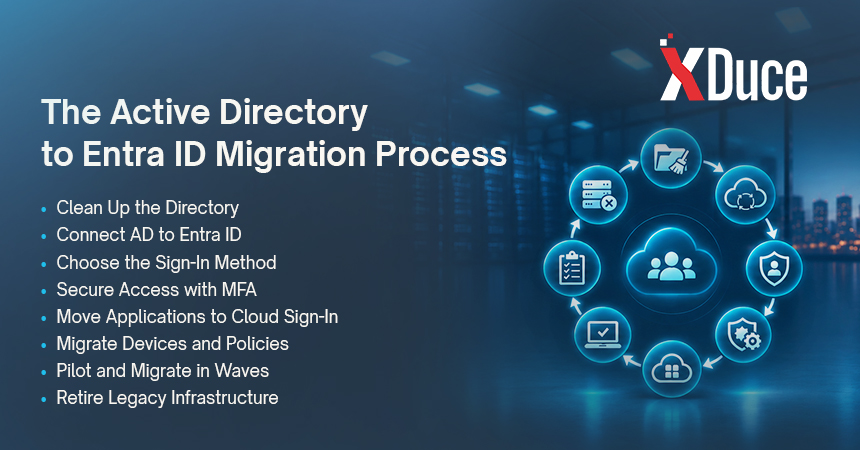
Here’s the order that keeps people signed in:
- Clean up the directory. Remove stale accounts, fix duplicates and attribute errors, and sort out UPN suffixes before you sync anything. Problems you sync get copied to the cloud.
- Connect Active Directory to Entra ID. Sync identities with Microsoft Entra Connect Sync or Microsoft Entra Cloud Sync. Microsoft describes Cloud Sync as the future for syncing users, groups, and contacts, and it has been adding capabilities such as device sync. Confirm current feature support before you choose a tool.
- Choose how users sign in. Password hash sync is the simplest to run. Pass-through authentication keeps password checks on-premises. Federation with AD FS adds the most infrastructure to maintain.
- Lock down access with MFA and Conditional Access. Require multi-factor authentication before you move anything else. Use report-only mode to see what a policy would block, and keep emergency access accounts so a misconfiguration can’t lock everyone out. Our Microsoft 365 security page shows how these controls fit together.
- Move applications to Entra ID sign-in. Cloud and SaaS apps usually move through single sign-on. On-premises web apps may use options such as Application Proxy. Legacy Kerberos or LDAP apps may need to stay on AD, or move to Entra Domain Services, for now.
- Move devices toward Entra join. Hybrid join is a stepping stone. The destination for most organizations is Entra-joined devices managed by Intune, provisioned with Windows Autopilot. Microsoft’s co-management FAQ notes that apps which work on cloud-joined devices don’t require hybrid join.
- Move Group Policy to Intune. Don’t translate every GPO. Microsoft advises using Group Policy analytics in Intune to find the settings that matter, and rebuilding only those.
- Pilot, then move in waves. Start with IT and a friendly department, fix what surfaces, then expand. Keep your fallback until each wave is stable.
- Retire what’s no longer needed. Decommission AD FS, old sync servers, and eventually domain controllers only when nothing depends on them. Many organizations keep a small AD footprint for years, and that’s fine.
Common Pitfalls
- Syncing a messy directory. Clean up first, sync second.
- Translating every GPO. Most aren’t worth rebuilding.
- Forgetting service accounts and legacy apps. They’re the ones that break quietly.
- Rushing MFA enforcement. Use report-only mode and emergency accounts.
- Overlooking Exchange hybrid and writeback dependencies. Check what still needs on-premises AD before you cut ties.
- Skipping communication. New sign-in prompts feel like outages if nobody warned users. Our guide to keeping employees informed during a Microsoft 365 migration has a plan you can borrow.
Keep Security and Compliance in the Plan
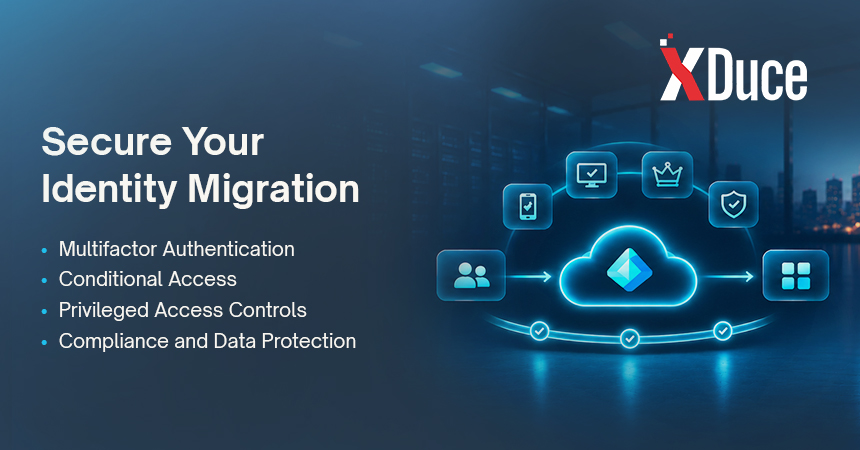
Identity is the front door, so migration is a good moment to tighten it:
- Enforce MFA and Conditional Access, and review who holds privileged roles.
- Check how HIPAA, GDPR, DORA, or the DPDP Act apply to your identity and access data.
Our compliance guidance by region explains what each framework expects.
DIY or Partner: Which Fits Your Situation?
Doing it in-house works when:
- The directory is small and clean.
- Few legacy apps depend on on-premises AD.
- Your team has the capacity and has done this before.
A partner earns its fee when:
- You have legacy apps, multiple forests, or regulated data.
- The timeline is fixed.
- Your IT team is already at capacity.
Research we draw on reports that DIY cloud migrations finish on time and on budget 49% of the time, against 71% for partner-led ones. Those are averages, not a promise.
A partner doesn’t mean handing over control. In a co-managed model, your IT team keeps the decisions while we take on the operational load. Our Microsoft 365 migration services include the identity work that makes everything else possible.
Frequently Asked Questions
No. Active Directory Domain Services runs on domain controllers you manage and provides Kerberos, LDAP, and Group Policy. Entra ID is Microsoft’s cloud identity service for sign-in, MFA, and single sign-on to cloud apps. Many organizations run both together in a hybrid setup, which is why migration is a gradual shift of dependencies rather than a swap.
Usually yes, when you go hybrid first and move dependencies in waves, because users keep signing in with the same accounts while the plumbing changes underneath. Risk concentrates in app sign-in changes and MFA enforcement, so pilot both. Our guide to a zero-downtime Microsoft 365 migration covers the same principles.
Not always, but often for a while. Legacy apps that rely on Kerberos or LDAP, file shares, and some Exchange hybrid setups can keep a small AD footprint alive. Many organizations shrink it gradually and retire domain controllers only once an inventory shows nothing depends on them.
Both sync identities from Active Directory to Entra ID. Connect Sync is the long-standing, server-based option with a broad feature set, while Cloud Sync uses lightweight agents and is where Microsoft is steering hybrid sync. Check current feature support, including device sync, before choosing, since the gap between them has been narrowing.
It depends on directory size and cleanliness, how many apps and devices are involved, and how many legacy dependencies you uncover. Syncing identities can happen quickly. Moving apps, devices, and policies is what takes the time. An assessment gives you an honest timeline, because anyone quoting one without it is guessing.

Related Blogs